Product guide
How to advertise on AdPluga
Create campaigns, define targeting and budget, and your ads reach verified publishers with transparent metrics.
1. Create account as advertiser
During registration, choose the "Advertise" profile. Onboarding guides you through creating your first campaign. You get test keys to validate without spending.
2. Fund wallet
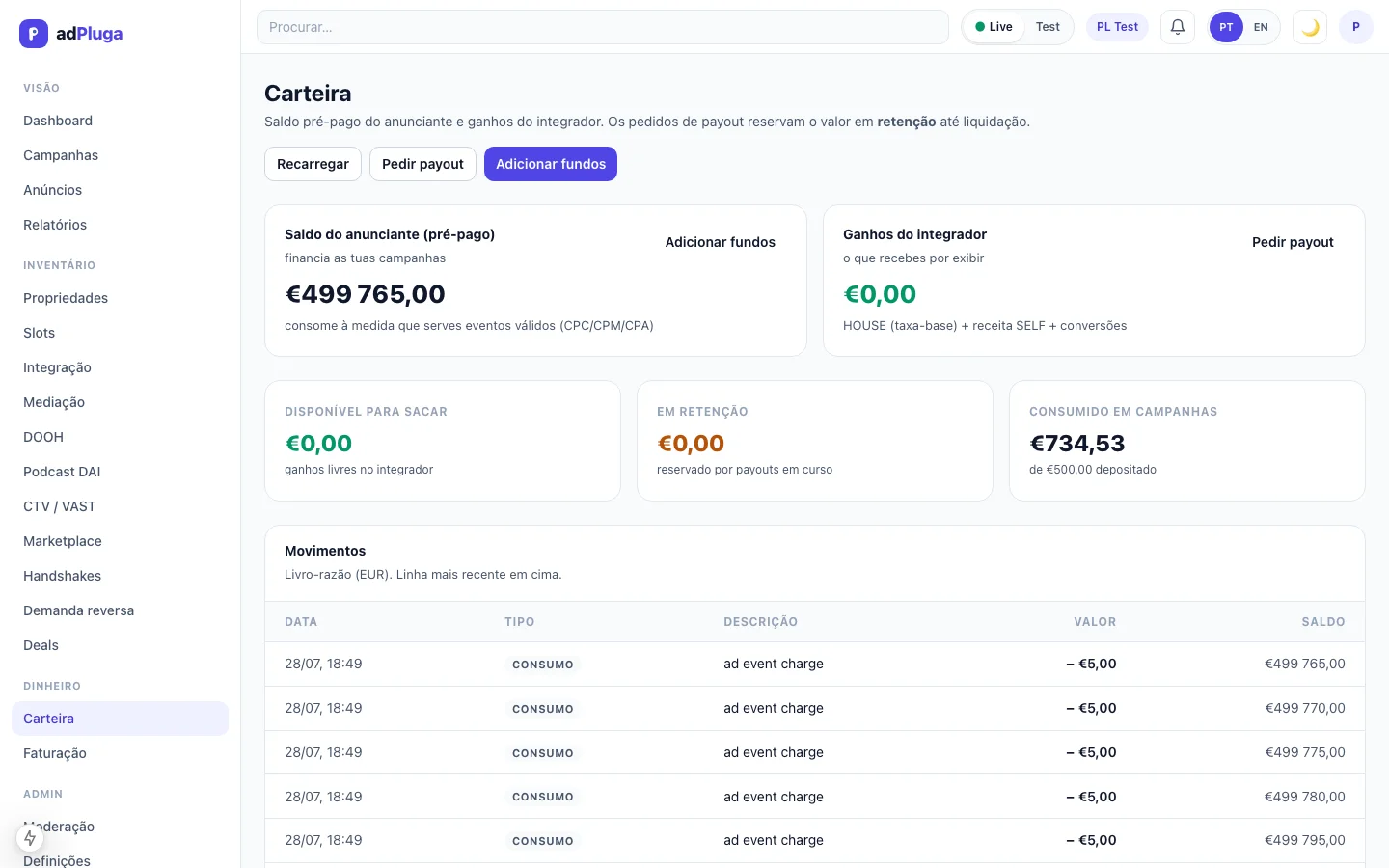
Deposit funds in the Wallet. Campaigns debit the balance as impressions/clicks/conversions are recorded. Without balance, campaigns pause automatically.
3. Create campaign
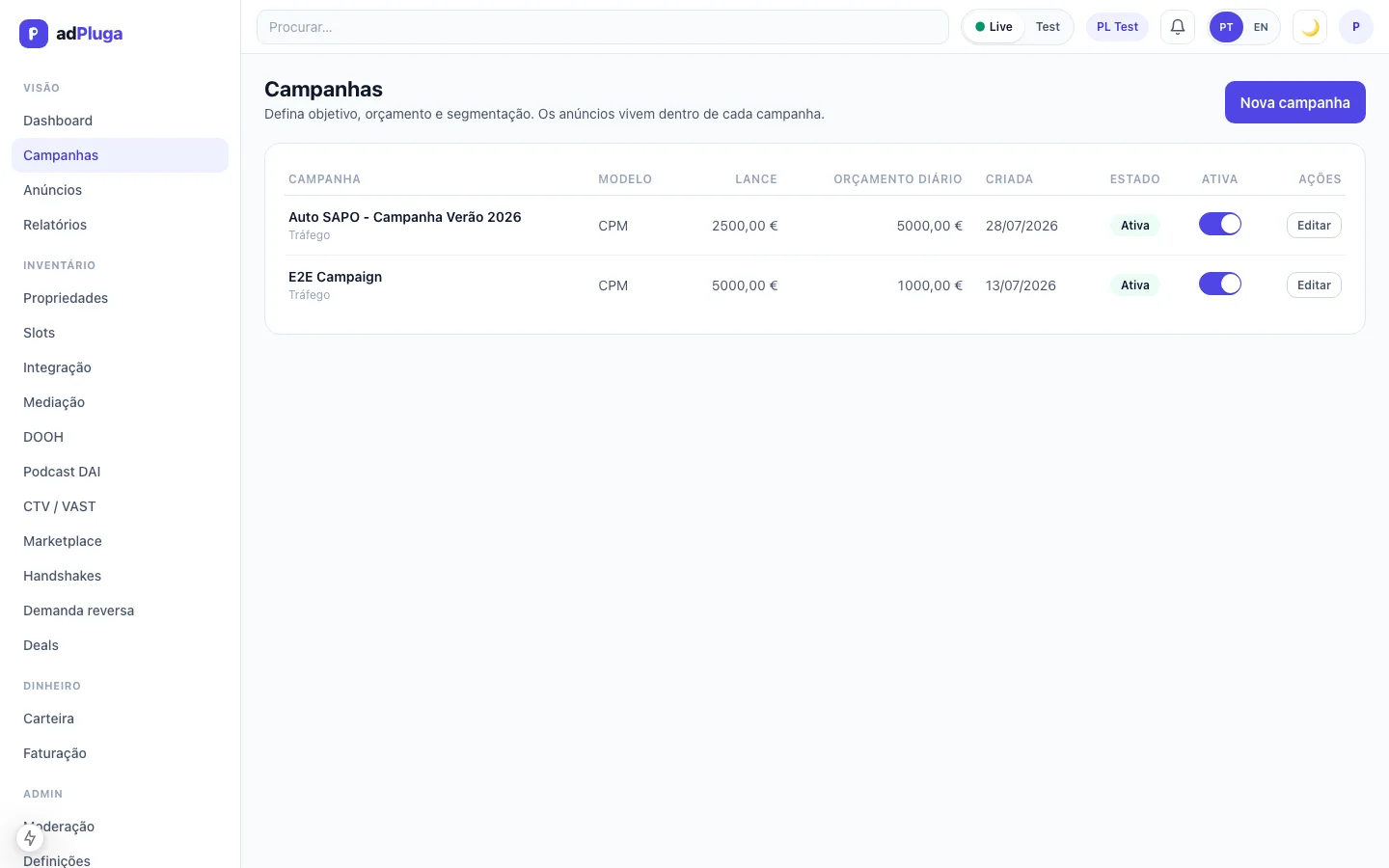
In Campaigns, define objective (traffic, awareness, conversions), pricing model (CPM, CPC, CPA, CPL), daily and total budget, and targeting (geo, device, IAB categories, first-party audiences, frequency cap, daypart).
4. Create ads
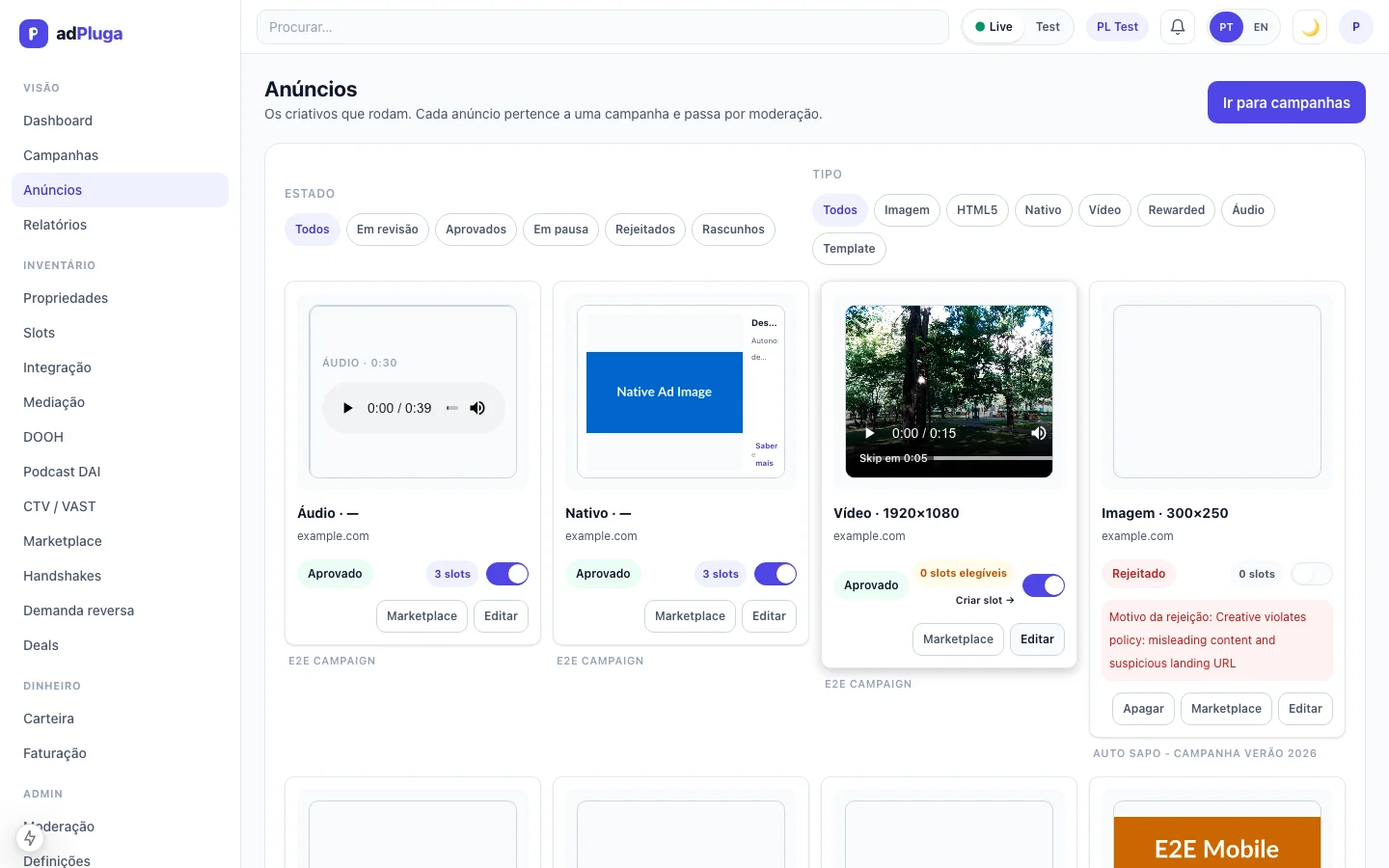
Inside the campaign, create ads (image, HTML or native). Each ad goes through moderation (draft → in_review → approved). Sensitive fields edited after approval revert to in_review.
5. Publish on marketplace
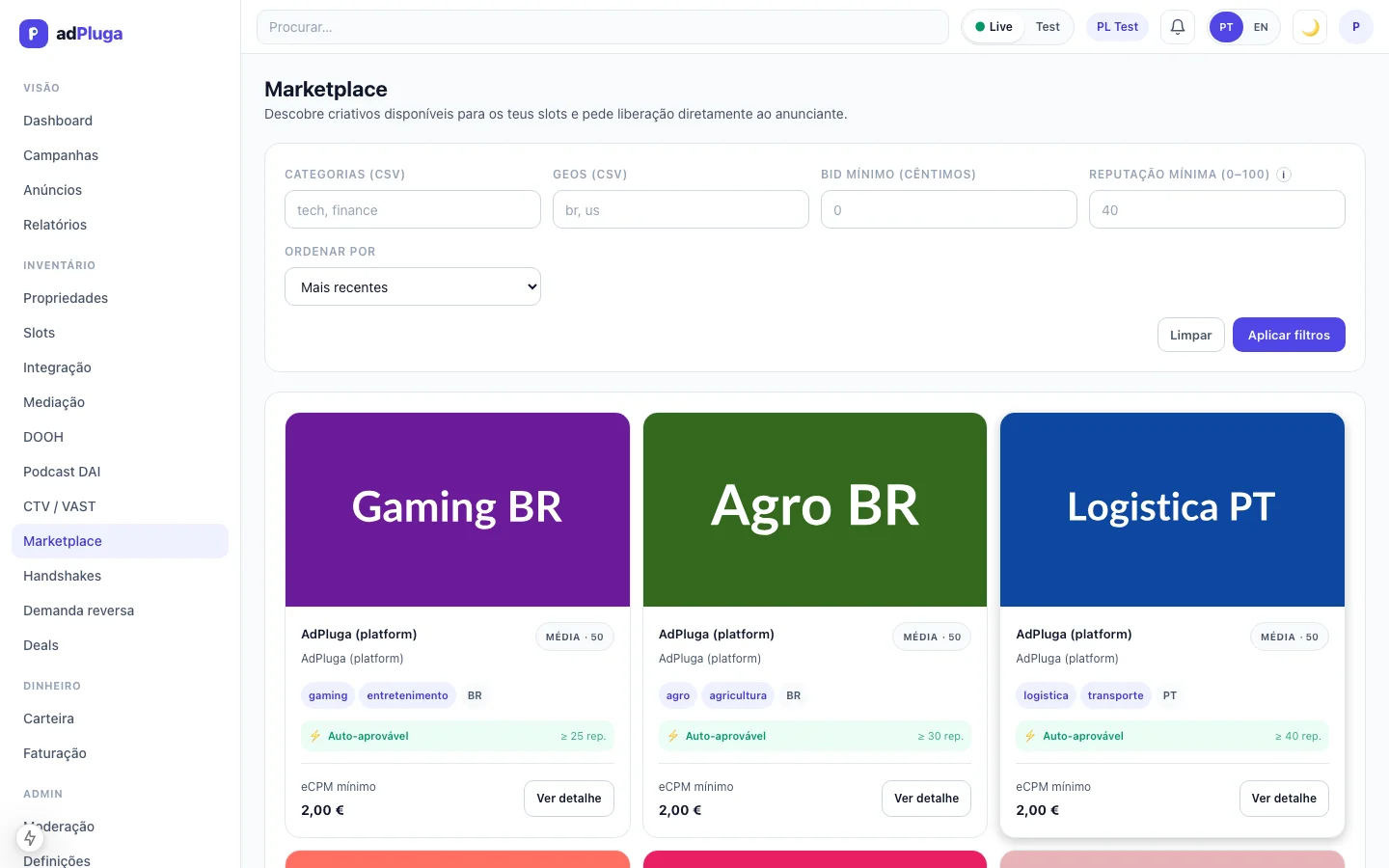
For each approved ad, enable marketplace visibility (categories, geos, minimum reputation). Publishers will discover it and request a handshake.
6. Manage handshakes
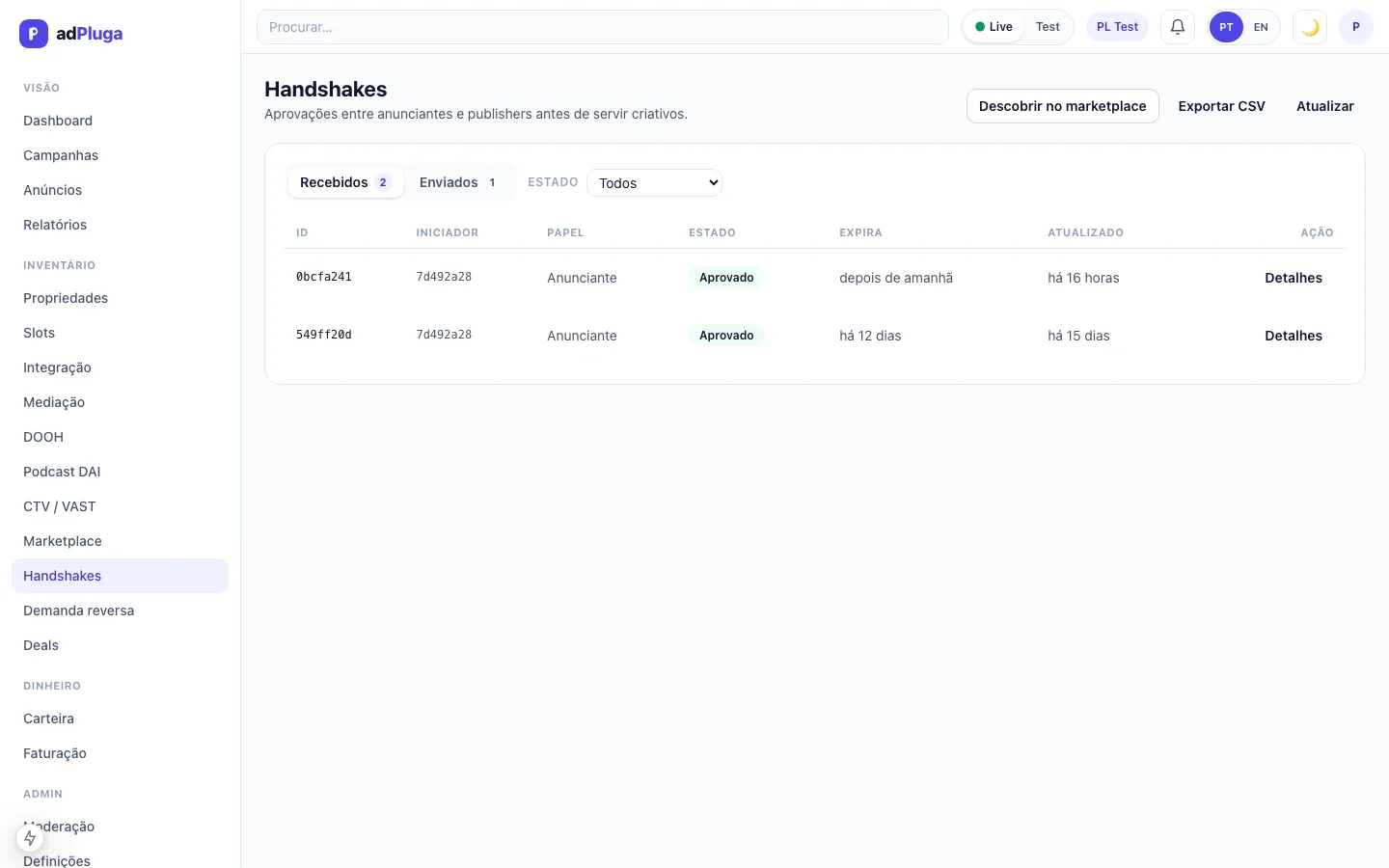
In Handshake, view publisher requests. You can approve manually or set up auto-rules for automatic approval based on reputation, geo and category.
7. Deals and billing
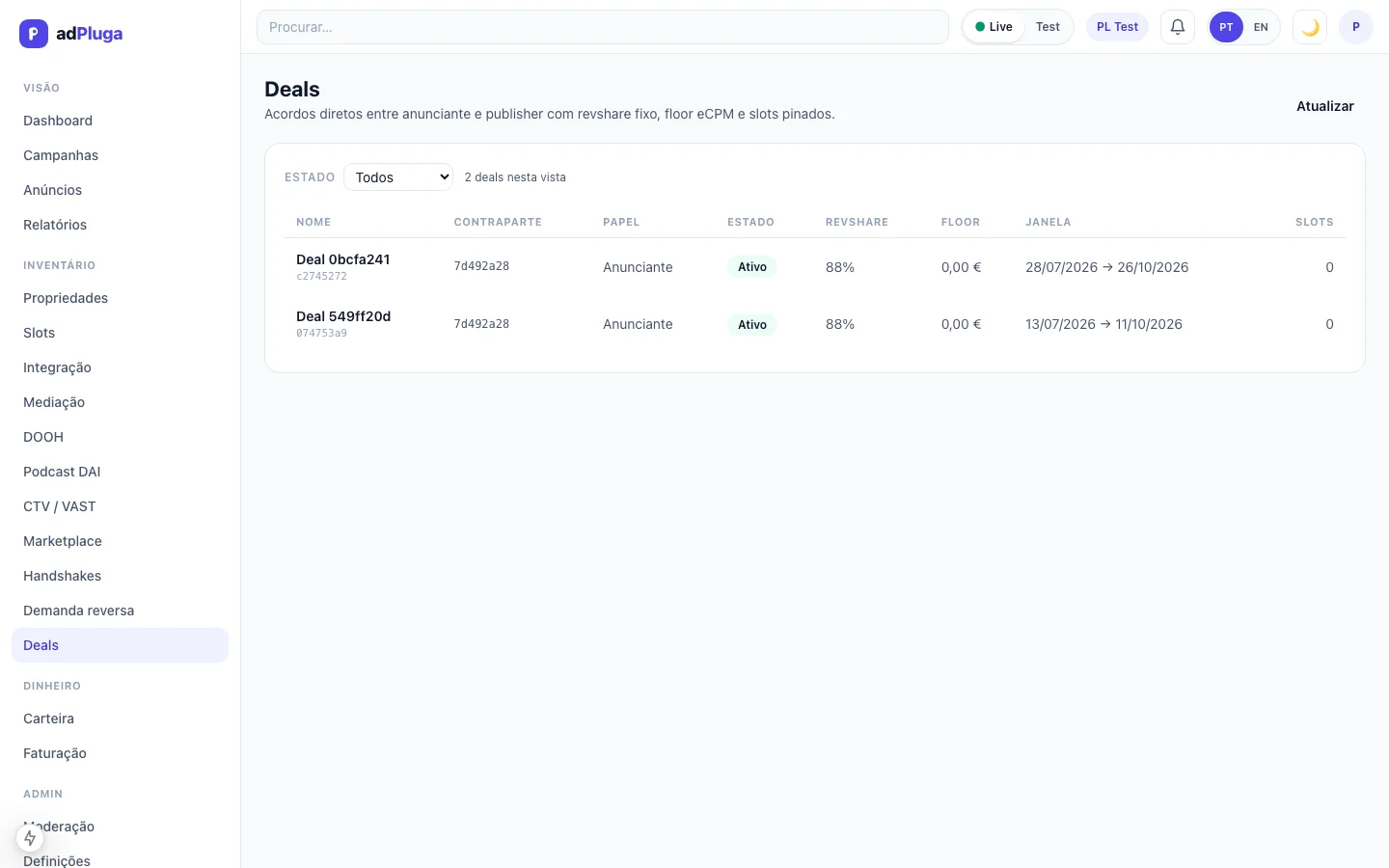
Each approved handshake generates a DIRECT deal. Impressions served under that deal debit your wallet (publisher receives 88%, platform 12%). Track KPIs, viewability and spend per deal.
8. Reports
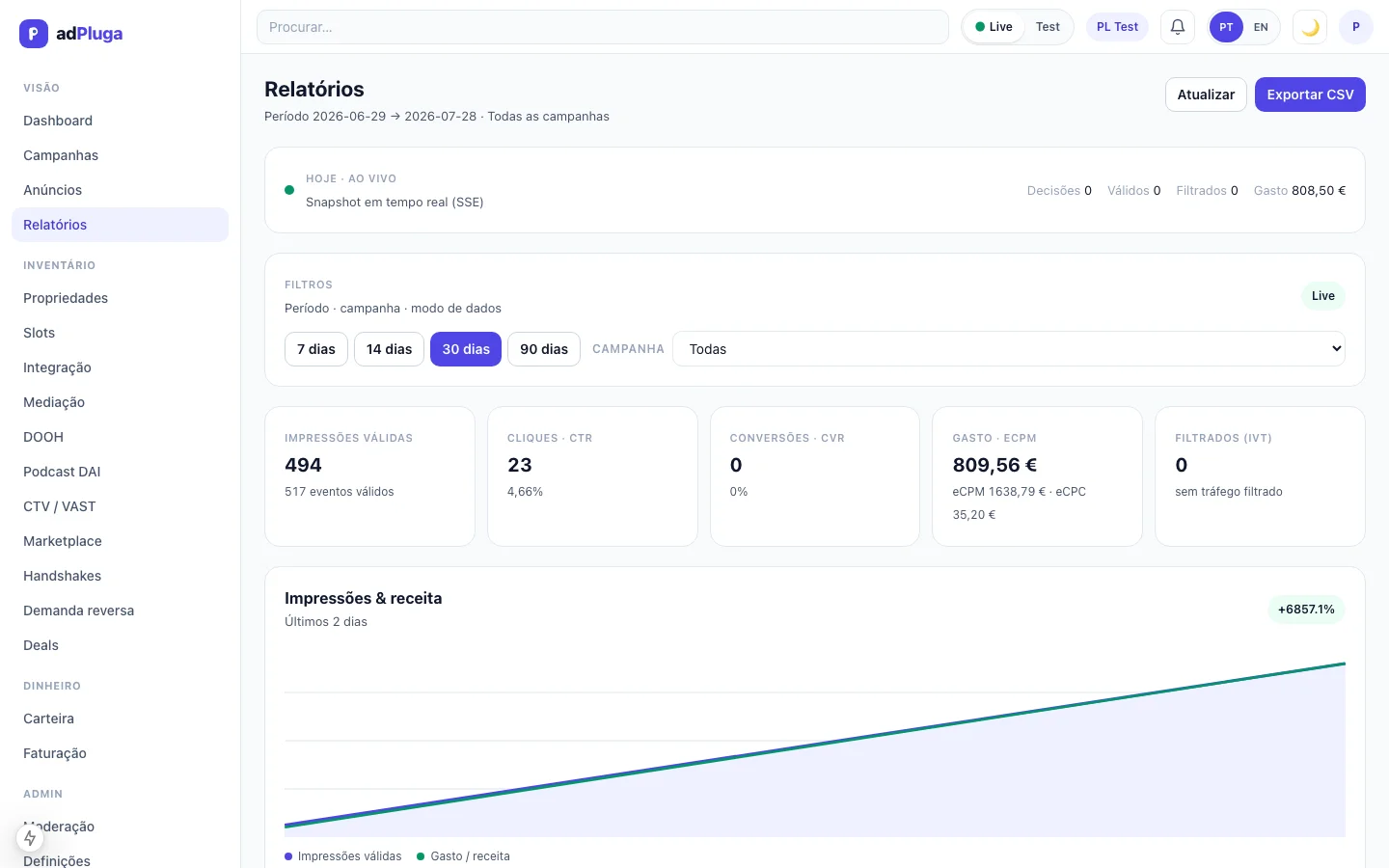
Check Reports for breakdowns by campaign, ad, geo, device and period. Export to CSV for external analysis.
9. Multiple formats per campaign
A campaign can contain multiple ads with different formats and sizes: 970×250 image for desktop, 320×100 for mobile, native for detail pages, HTML5 for rich media, video for pre-roll and audio for podcasts. Each ad has its own moderation and metrics — you can pause one without affecting the rest. The engine automatically picks the creative compatible with the slot format.
10. Approval and moderation
There are two layers of control. First, creative moderation: each ad goes through internal review (draft → in review → approved or rejected). The creator cannot approve their own creative. Second, distribution authorization: you define where the ad can appear (marketplace, handshake, auto-rules). Editing sensitive fields after approval automatically reverts the status to review.
11. Restrict to a single service
You can restrict a campaign to a single site, app or service. In a DIRECT deal, you define the specific authorized slots. By combining targeting (geo, category, device) with slot assignment, you ensure the ad only appears where you want — for example, only on Auto SAPO and never on News.
12. Organization management
Campaigns belong to the organization, not the user who created them. The administrator sees all campaigns, ads, users and metrics for the organization. You can invite members with different roles: administrator (full access), advertiser (campaigns and creatives), analyst (reports without modifications). If a member leaves, campaigns remain intact.